
Install
Narada works in every Chromium-based browser (Chrome, Edge, Brave, Opera, Vivaldi, Arc, version 110+) and every Firefox-based browser (Firefox, ESR, LibreWolf, Waterfox, Floorp, Zen, version 115+). Safari isn't supported.
Store listings on the Chrome Web Store and Firefox Add-ons are coming. Until then, install from GitHub Releases.
Chromium browsers
- Download
narada-chromium.zipand unzip it. - Open
chrome://extensions(oredge://extensions,brave://extensions…). - Turn on Developer mode, click Load unpacked and choose the unzipped folder.
Firefox browsers
- Download
narada-firefox.zip. - Open
about:debugging#/runtime/this-firefox→ Load Temporary Add-on… and pick the zip. Temporary add-ons are removed when Firefox restarts; the store version installs permanently.
Firefox for Android
Narada works in Firefox for Android 120+. On Android, Firefox only installs add-ons from addons.mozilla.org, so install it from there once it's listed. Tap ⋮ → Extensions → Narada to open it full-screen. Everything works as on desktop (pairing, tabs, sign-in data, notes, history), except what Android doesn't support: the right-click menu, keyboard shortcuts, the badge and organization policy. Android pauses Firefox in the background, so keep it open while sending or receiving.
Quick start
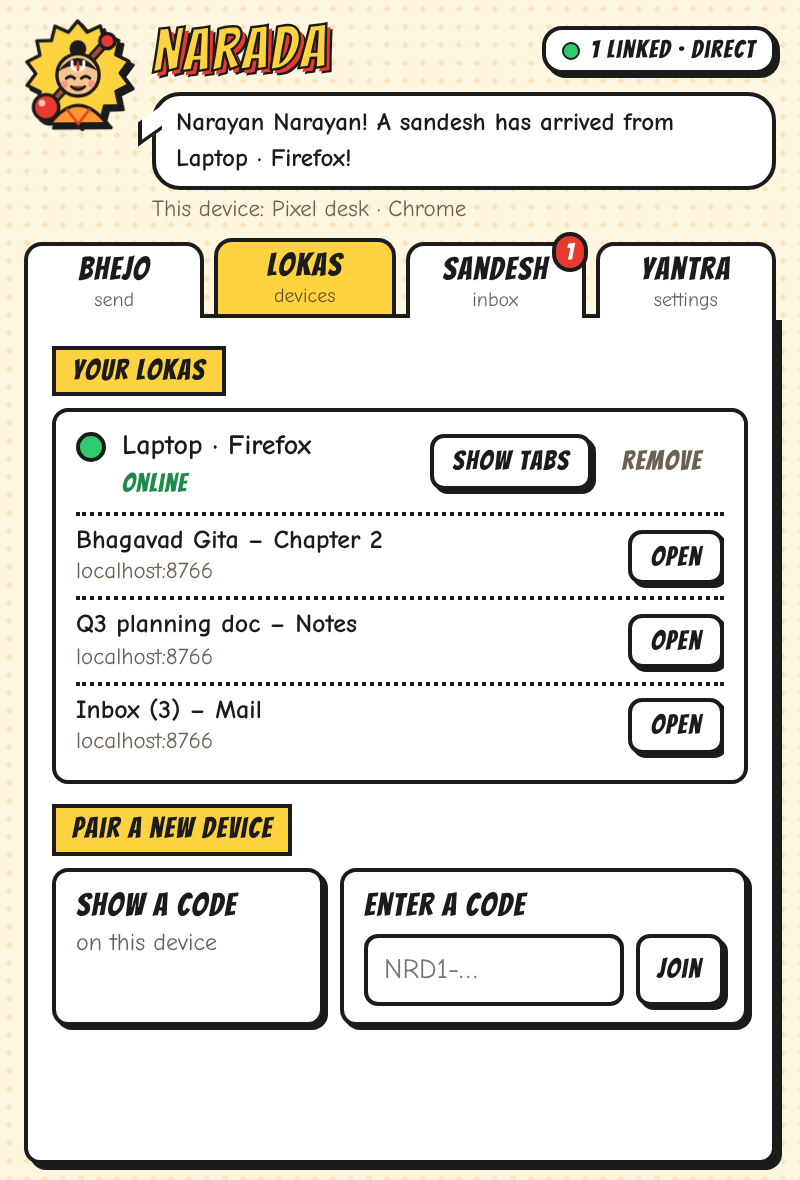
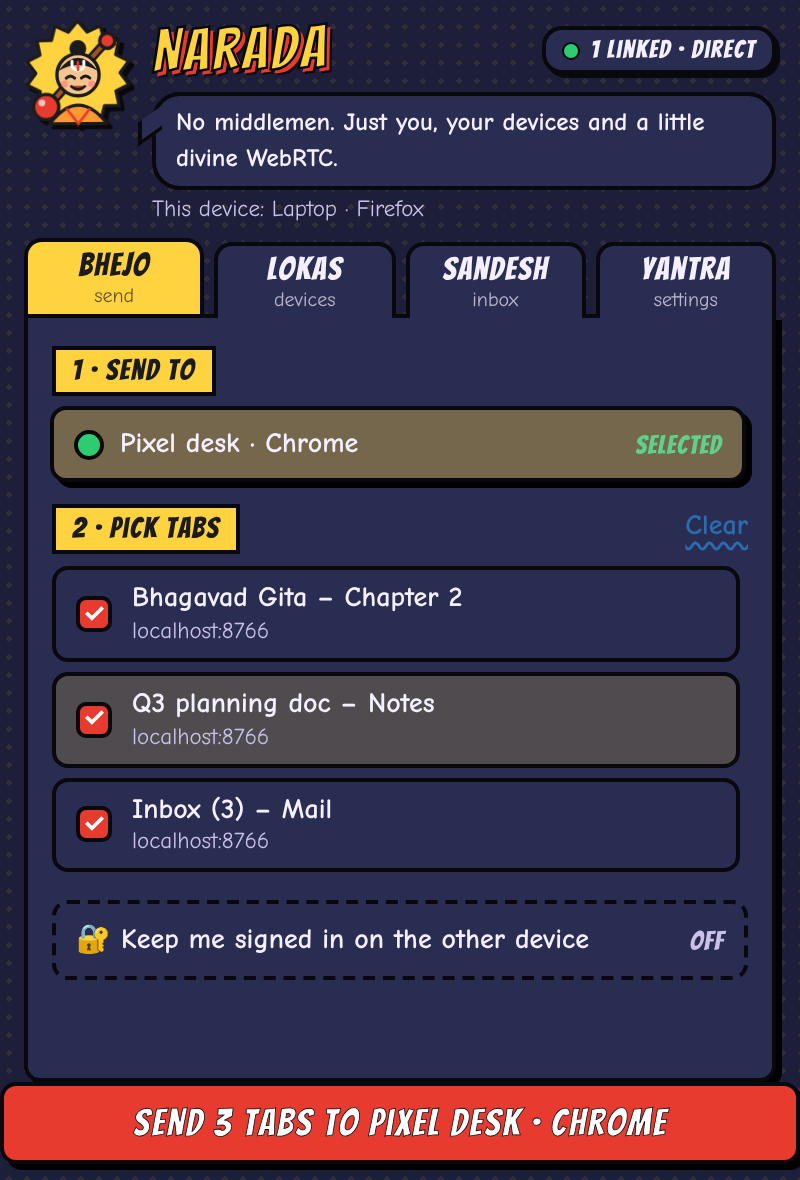
The popup has four tabs: Bhejo (send), Lokas (devices), Sandesh (inbox) and Yantra (settings).
- Pair: on browser A open Lokas → Show a code. On browser B open Lokas → Enter a code, paste it and press Join. Both show six digits. If they match, press Yes, they match on each. BANDHAN! You only do this once per pair of browsers.
- Send: in Bhejo, pick the device, tick the tabs, and press the big button. To stay logged in on the other side, open Keep me signed in and switch on cookies and/or site storage.
- Approve: the other browser shows a notification. Sandesh lists the tabs and exactly which sites you'd be signed in to. Press Accept to open them, or Decline. Requests expire after 5 minutes.
Bonus: in Lokas, Show tabs lists what's open on a connected device, so you can open any of those tabs here.
Shortcuts & quick send
- Right-click any page or link → Send to device with Narada → pick a device. If it's offline, Narada tries to connect first.
Alt+Shift+Ssends the current tab to the device you used last.Alt+Shift+Yopens Narada. You can change the keys atchrome://extensions/shortcuts, or in Firefox under Add-ons → ⚙ → Manage Extension Shortcuts.- Quick sends carry just the tab, never sign-in data. To send cookies or site storage, use the popup.
Notes
To send text instead of a tab (a link, an address, a Wi-Fi password, a code snippet), open Bhejo → Send a note instead. You can also select text on any page, right-click, and pick a device. The other browser shows the note in Sandesh with a Copy button. Notes are end-to-end encrypted, kept in memory only (never on disk), and vanish after 15 minutes. Notifications never show a note's text, and the sender sees delivered, then read.
Received history
Sandesh → Received recently lists the last 50 tabs you received, so you can reopen one you closed. It keeps titles and links only, never cookies, site storage or notes. Clear it there, or turn it off in Yantra.
Trusted devices
In Lokas, open a device's Options to give it a local name, or switch on Open its tabs automatically. Plain tabs from that device then open straight away, up to 5 sends a minute. Anything carrying cookies or site storage still waits for your approval.
How it works
Narada has three moving parts: pairing, finding each other, and a direct encrypted connection.
1. Pairing
The one-time code holds a random 256-bit secret. It works once and expires after 10 minutes. Each browser has its own identity key (ECDSA P-256), created on first run. That key can't be exported, even by Narada. During pairing, the browsers exchange public keys and sign a shared transcript. The six digits you compare are derived from that transcript, so a matching number proves nobody swapped keys in between. Each browser then pins the other's key and saves a shared pair secret.
2. Finding each other
Browsers on different networks need a way to say "I'm here". Narada uses free, public Nostr relays as a noticeboard. Each pair derives a meeting spot (a random-looking tag) and an encryption key from its pair secret, and both rotate every day. Every handshake message is encrypted, timestamped, and signed with a throwaway key. Relays can't read it or link it to you over time, and they never store it, because these are "ephemeral" events.
3. The direct connection
The browsers set up a WebRTC data channel. Google's public STUN servers tell each browser its public address, and after that the data flows directly between them. There's deliberately no TURN relay. Once connected, Narada closes its relay connections, so no server is involved at all.
On top of WebRTC's built-in DTLS encryption, Narada runs its own handshake:
- fresh ECDH keys for each connection, which gives forward secrecy;
- signatures checked against the pinned keys;
- everything bound to this connection's DTLS fingerprints;
- AES-256-GCM frames with strict sequence numbers, so anything replayed, reordered or tampered with drops the connection.
Security at a glance
| Threat | What Narada does |
|---|---|
| Relay operators or network snoops | The handshake is encrypted and topics rotate daily. Throwaway signing keys are used. Your tabs and cookies never touch a relay. |
| A leaked pairing code | The code is single use and expires in 10 minutes. Comparing the six digits catches anyone who used it first. |
| Someone in the middle | Pinned device keys, mutual signatures, and a handshake bound to the WebRTC (DTLS) fingerprints. |
| Stolen session keys | Fresh ECDH keys for every connection, with separate keys for each direction. |
| Malicious or buggy peer | Strict input checks: only http(s) links; cookies must belong to the tab's own site; storage must match its origin; size limits apply. |
| Silent sign-in import | Every transfer with sign-in data needs your Accept, even from trusted devices. There's no way for a device to request your cookies, so they only travel when you send them. |
| Keys copied off disk | Keys are non-extractable WebCrypto keys. Received cookies are never stored by Narada itself. |
Permissions
| Permission | Why |
|---|---|
tabs | List your tabs so you can pick what to send, and open the tabs you receive. |
scripting | Read or restore a tab's site storage, only when you ask. |
notifications | Tell you that tabs are waiting for approval. |
offscreen (Chromium) | Run the WebRTC connection in the background. |
contextMenus / menus | The "Send to device with Narada" right-click item. |
storage | Read settings your organization manages through browser policy. |
cookies + all sites (optional) | Requested only the first time you send or accept sign-in data. |
Private and incognito windows are never touched.
Troubleshooting
"Offline" or "Last try: no answer"
Both browsers need to be running with Narada enabled. Press Connect on the device in Lokas. Without a TURN relay, some network pairs can't connect directly, such as strict corporate firewalls or two symmetric NATs. Trying another network, or the same Wi-Fi, usually fixes it.
"WebRTC is turned off in this browser"
LibreWolf and some hardened setups disable WebRTC. In about:config, set
media.peerconnection.enabled to true. In Brave, set Settings → Privacy → WebRTC IP handling policy
to anything other than "Disable non-proxied UDP".
The popup closed when I ticked "Include cookies" (Firefox)
Firefox closes popups while it shows a permission prompt. Allow it, then reopen Narada and tick the box again.
Some cookies "couldn't be set"
Browsers reject some cookies, for example cross-site cookies in strict tracking-protection modes. The tab still opens, but you may need to sign in on that site.
For organizations
Everything in Yantra can be set centrally through Chrome or Edge enterprise policy, Firefox
policies.json, Group Policy, Intune, Jamf or the Google Admin console. A managed setting overrides the
user's choice and shows a 🔒. Restrictions are enforced on both ends, so a device that blocks cookies rejects incoming
sign-in data even if the sender allows it.
- Feature switches: pairing, cookies, site storage, notes, auto-open, tab-list sharing, history.
- Network: your own Nostr relays and STUN servers (no TURN, by design).
- OpenTelemetry: export logs to your OTLP/HTTP collector with custom headers and resource attributes. Only events are sent, never URLs, titles, cookies or notes.
Policy examples for every platform are in docs/ENTERPRISE.md.
FAQ
Is there really no server?
There's no Narada server. Public Nostr relays (which you can change in Yantra) carry only the encrypted handshake, and Google STUN only reports your public address. After that, it's browser to browser.
Does it sync automatically?
No. Narada only sends what you pick, when you press Send. That keeps you in control, especially for sign-in data.
Is sending cookies safe?
Cookies are your sign-in, so only send them to your own devices. They're end-to-end encrypted, go directly to the device you paired, and are applied only after you accept on that device.
Where does the name come from?
Narada Muni, the sage of the Bhagavata Purana, travels between all the worlds carrying messages: "Narayan Narayan!"
Build from source
git clone https://github.com/dmdhrumilmistry/narada
cd narada
npm ci
npm run build     # → dist/chromium and dist/firefox
npm test          # unit tests
The build is reproducible: release zips match what you build from the tagged source. The full design is in docs/PLAN.md.