Platform setup
Windows and Linux work out of the box. Apple, Android and ChromeOS need credentials from Apple or Google, which you connect in the console under Settings > Platforms. Apple and Android also need Apple's or Google's approval of your organization, which individuals and personal use do not get; read the warning in each section before you start. Credentials are stored encrypted with the server key and take effect immediately, with no restart.
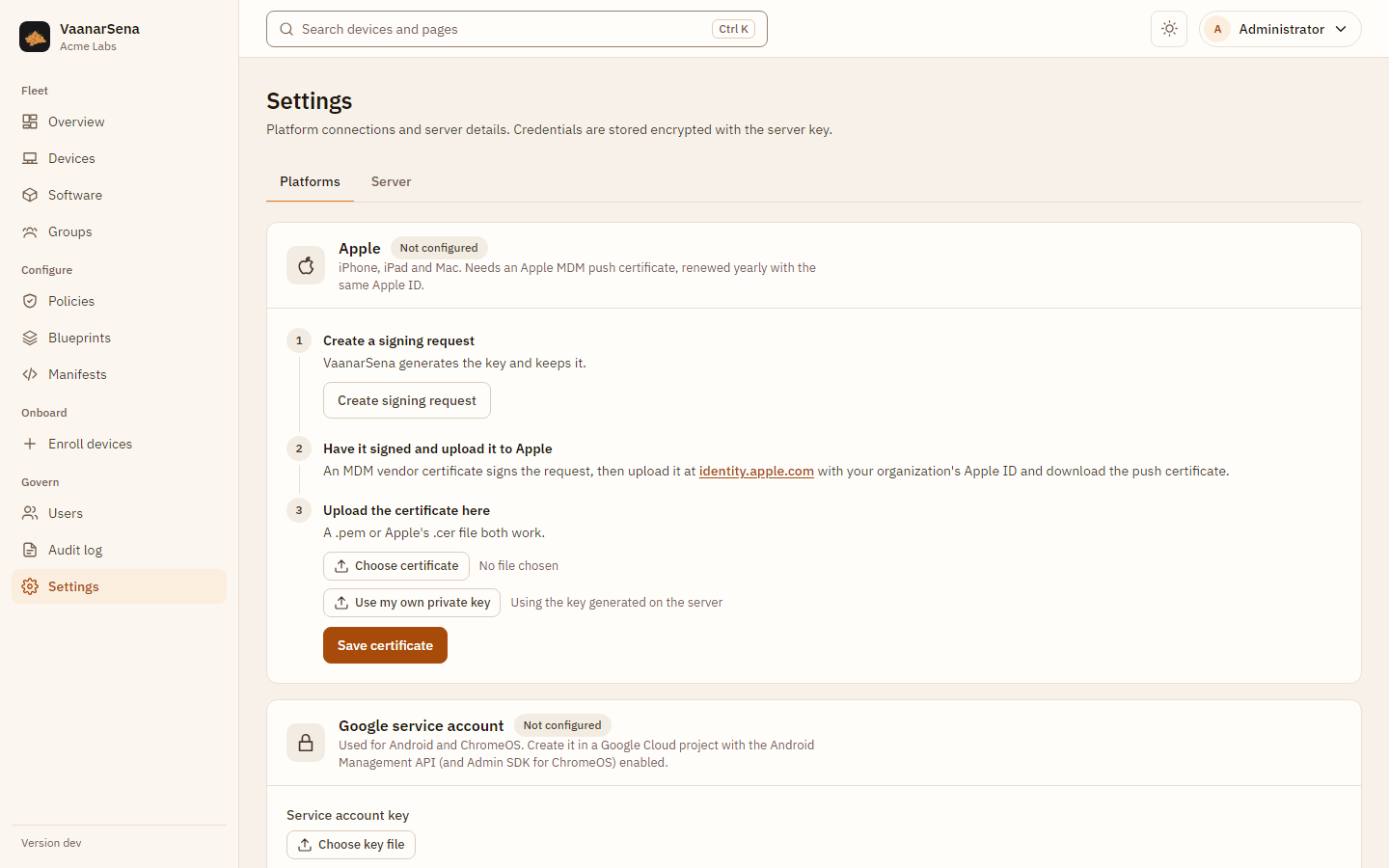
Every platform can also be configured with environment variables instead (see Configuration). A platform configured that way shows "Set by environment variables" in the console and cannot be changed there.
Apple (iOS, iPadOS, macOS)
Apple devices are woken through Apple's push service (APNs), which needs an MDM push certificate for your organization.
Before you start: Apple only issues this to organizations
Apple's push portal accepts a request only when it is signed with an MDM vendor certificate issued by Apple. Apple gives that certificate only to organizations (Apple Developer Program enrolled as an organization, with the "MDM CSR" capability requested from Apple), and excludes individuals and personal use, including test setups. Community signing services apply the same rule (see Community signing services).
- Uploading the unsigned
vaanarsena-push.csrdirectly fails with "Invalid Certificate Signing Request". The same message appears when the signed request is in the wrong format or signed with the wrong key. - Your domain's TLS certificate (for example Let's Encrypt) cannot sign it: Apple checks the signature against its own vendor certificate chain.
- Hosted MDM products sign requests with their own vendor certificate. A self-hosted VaanarSena has no vendor of its own, so the organization running it needs one.
Without a push certificate, Apple devices cannot be managed. Windows, Linux and ChromeOS are not affected.
- Create a signing request. In Settings > Platforms > Apple, choose
Create signing request and download
vaanarsena-push.csr. VaanarSena generates the private key and keeps it; it never leaves the server. The server keeps only the key of the latest request: do not create another one until you have saved the certificate for this one. - Have it signed and upload it to Apple. Sign the request with your organization's MDM vendor certificate (see Signing the request). Upload the signed request at identity.apple.com with your organization's Apple ID (not a personal one: renewals need the same Apple ID) and download the push certificate.
- Upload the certificate. Choose the
.pemor Apple's.cerfile and Save certificate. Apple enrollment is on as soon as it saves.
Already have a certificate and key from another tool? Use Use my own private key in step 3 instead of generating a request.
The certificate lasts one year. Renew it with the same Apple ID: a new certificate with a different push topic orphans every enrolled device. The server logs a warning 30 days before it expires.
Signing the request
Apple describes the format in Setting up push notifications for your device management customers. You need:
mdm.cerandvendor.key: your "MDM Vendor CSR Signing Certificate" from the Apple Developer portal and the key you created it with.AppleWWDRCAG3.cerfrom apple.com/certificateauthority andAppleIncRootCertificate.cerfrom apple.com/appleca.
Check that the key belongs to the certificate (both lines must match):
openssl x509 -inform der -in mdm.cer -noout -modulus | openssl md5
openssl rsa -in vendor.key -noout -modulus | openssl md5
Then build the signed request. It is a property list with the request (DER, base64), the certificate chain (PEM: vendor certificate, WWDR intermediate, Apple root, in that order) and a SHA-256 RSA signature of the DER request, itself base64-encoded:
openssl req -in vaanarsena-push.csr -outform der -out push.der
openssl dgst -sha256 -sign vendor.key -out push.sig push.der
for c in mdm.cer AppleWWDRCAG3.cer AppleIncRootCertificate.cer; do
  openssl x509 -inform der -in "$c"
done > chain.pem
openssl verify -CAfile chain.pem chain.pem   # the chain must reach Apple's root

cat > push.plist <<EOF
<?xml version="1.0" encoding="UTF-8"?>
<!DOCTYPE plist PUBLIC "-//Apple//DTD PLIST 1.0//EN" "http://www.apple.com/DTDs/PropertyList-1.0.dtd">
<plist version="1.0">
<dict>
  <key>PushCertRequestCSR</key>
  <string>$(openssl base64 -A -in push.der)</string>
  <key>PushCertCertificateChain</key>
  <string>$(cat chain.pem)</string>
  <key>PushCertSignature</key>
  <string>$(openssl base64 -A -in push.sig)</string>
</dict>
</plist>
EOF
openssl base64 -A -in push.plist > vaanarsena-push-signed.b64
Upload vaanarsena-push-signed.b64 to Apple. Keep vendor.key private and
reuse it every year to sign the renewal request.
Community signing services
Services such as mdmcert.download sign push requests for organizations that have no vendor certificate of their own. VaanarSena does not support mdmcert.download today:
- Organizations only. Registration asks for your organization, title, telephone and organization address, and only an organization email address is accepted: free and disposable addresses (Gmail and similar) are blocked to prevent individual use and personal devices. You must accept the service's terms, which are shown only after registering.
- No public client protocol. Its instructions describe the steps only at a high level: the MDM server creates an encryption certificate and the push request and submits them to the service's web API, the signed request comes back encrypted by email, and the MDM server decrypts it for you to upload to Apple. The API endpoint, API key, request and reply formats and the decryption step are not documented, and the service expects an MDM that already has this client built in. VaanarSena does not, and will not copy one from another MDM.
- Revocable. The service warns that Apple can revoke certificates issued this way at any time.
There is no route for individuals or test setups without an organization: APNs is the only way to wake an Apple device, so without a push certificate an enrolled device never checks in. To test without Apple, use Windows, Linux, ChromeOS or Android devices.
Company-owned devices: create an Apple, company-owned enrollment, open the link in Safari on the device and install the profile from Settings.
Personal devices (User Enrollment): create an Apple, personal enrollment with the user's Managed Apple ID (from Apple Business Manager) as the user. iOS creates a separate managed volume; the organization cannot see personal data, read hardware identifiers or erase the device, and the server refuses those commands anyway.
Not yet supported: Automated Device Enrollment (ABM/DEP), Apps and Books (VPP)
licensing, Declarative Device Management. install_app works with an
enterprise app manifest URL.
Windows 10 and 11
Built in; nothing to set up. Windows uses the on-premises enrollment flow: the user's email plus the enrollment token as the password.
- In Enroll devices, choose Windows, enter the user's email and create the enrollment.
- On the PC: Settings > Accounts > Access work or school > Enroll only in
device management, or open the
ms-device-enrollment:link from the console. - Enter the email and the server address shown, then the token when asked for a password.
Home editions of Windows have no MDM client; use Pro, Enterprise or Education.
For enrollment by email address alone, publish
enterpriseenrollment.<your-email-domain> as a CNAME to the server.
Windows checks in every 15 minutes and at sign-in. Push wake-ups need Microsoft's WNS and are not used.
The management endpoint authenticates the PC by TLS client certificate. Behind a proxy, the proxy must request the client certificate and pass it on; see Hosting.
Personal PCs receive only sign-in (DeviceLock) policies. BitLocker, camera,
USB and update policies are company-owned only.
Compliance is evaluated at each inventory refresh against what the device's policy requires and what Windows reports: a PC whose policy requires encryption is non-compliant until BitLocker reports it encrypted. A PC with no encryption requirement is not marked non-compliant for being unencrypted. Windows compliance covers encryption only: passcode, firewall and the other settings are enforced through the Policy CSP but not evaluated, so keep that in mind before using Windows compliance for conditional access.
Installing an MSI needs appId (the product code), url, hash (SHA-256 of
the file) and version; removing one needs appId. Commands missing them are
refused when sent.
Android
Uses Google's Android Management API. You need a Google Cloud project with a service account, then an Android Enterprise bound to it.
Before you start: Google must approve your project
Google restricts the Android Management API to commercial EMM providers with a business justification (see Google's permissible usage page). Solutions used only in-house, and personal use, are not permitted.
- New projects can enroll no devices until Google approves them. Every enrollment fails on the device, whatever the mode: a work profile shows "your organization has reached its usage limits", and a fully managed device may show "your IT admin doesn't allow this policy". VaanarSena and the device are not at fault; the API key and the enterprise connection still work, so nothing looks wrong until the first enrollment.
- Request quota with the form linked from the permissible usage page (an initial quota of up to 500 devices needs a full business justification; Google grants quota to at most two projects per developer). Approval takes weeks. Do this before planning a rollout.
- Use organization accounts throughout, not personal Gmail accounts: own the Cloud project from your organization's Google account, and sign up for the Android Enterprise with a work account (a Google Workspace admin, or a work email verified with Google; Google's sign-up may refuse a personal address). The account that signs up becomes the enterprise's admin, so it should belong to the organization, not to whoever set it up.
- Hosted MDM products enroll through their own approved project. A self-hosted VaanarSena uses yours, so the approval has to be yours.
1. Create the service account
Sign in to gcloud with your organization's account (the project owner),
then create the project, the service account and its key. Replace the
placeholders; project IDs are global, so pick a unique one.
gcloud auth login admin@example.com
PROJECT=example-mdm                       # your project ID
SA=vaanarsena-amapi@$PROJECT.iam.gserviceaccount.com

gcloud projects create $PROJECT                    # skip if it exists
gcloud services enable androidmanagement.googleapis.com --project=$PROJECT
gcloud iam service-accounts create vaanarsena-amapi \
  --display-name="VaanarSena Android management" --project=$PROJECT
gcloud projects add-iam-policy-binding $PROJECT --condition=None \
  --member="serviceAccount:$SA" --role=roles/androidmanagement.user
gcloud iam service-accounts keys create vaanarsena-amapi.json \
  --iam-account=$SA --project=$PROJECT
In VaanarSena, Settings > Platforms > Google service account: choose
vaanarsena-amapi.json (the project ID is read from it) and Save key.
Then delete the local file: the key is stored encrypted on the server, and
anyone holding the file can manage your enterprise.
If key creation fails with constraints/iam.disableServiceAccountKeyCreation,
your Google Cloud organization blocks service account keys (the default for
organizations created since 2024). An organization policy administrator can
allow it for this project only:
gcloud resource-manager org-policies disable-enforce \
  iam.disableServiceAccountKeyCreation --project=$PROJECT
The console works too: APIs & Services > Library (Android Management API), IAM & Admin > Service accounts (create, role Android Management User), then Keys > Add key > JSON.
Moving to another project (for example from a personal account to the
organization's): choose Replace key with the new key, Remove on the
Android Enterprise card, connect a new enterprise (step 2) and re-enroll
devices; an enterprise belongs to the project it was created with. Then delete the old
key: gcloud iam service-accounts keys list --iam-account=<old SA> and
gcloud iam service-accounts keys delete <key id> --iam-account=<old SA>.
2. Connect the Android Enterprise
In Settings > Platforms > Android, choose Connect Android Enterprise.
You are sent to Google's sign-up, where you name the enterprise and accept the terms with a Google account. Google then sends you back to VaanarSena, which creates the enterprise and turns Android management on. The page shows "Android Enterprise connected".
That return trip is authenticated by a single-use link that expires after an hour, so the sign-up must be finished in one go. If it fails or times out, choose Connect again.
Already have an enterprise (for example from an earlier installation)? Enter
its name, enterprises/LC0..., under Already have an enterprise? instead.
3. Enroll devices
Company-owned (fully managed): create an Android, company-owned enrollment. On a factory-reset device, tap the welcome screen six times and scan the QR code from the console.
Personal (work profile): create an Android, personal enrollment and open the enrollment link on the phone. Android isolates the work profile; Retire deletes it and leaves personal data alone.
Devices sync every 5 minutes. Apps are managed through the policy Apps section (platform Android), and raw Android Management API fields can be added under Custom payloads.
Commands are sent to Google as soon as they are queued. If that is missed (the Android connection was down or reconfigured, or the server restarted), the next sync sends whatever is still queued. A command shows as done once Google accepts it; the device carries it out when it next connects.
ChromeOS
ChromeOS devices are enrolled into your Google Workspace or Chrome Enterprise domain on the device itself. VaanarSena imports them and sends commands.
- Add the Google service account (see Android, step 1) and enable the Admin SDK API in the same project.
- In the Google Admin console, Security > API
controls > Domain-wide delegation, add the service account's client ID
with the scope
https://www.googleapis.com/auth/admin.directory.device.chromeos. - In Settings > Platforms > ChromeOS, enter a Workspace admin the service account may act as, and Connect ChromeOS.
Chromebooks sync every 15 minutes. Supported commands: refresh, restart, lock (disable), erase (remote powerwash) and retire (deprovision). Device policy stays in the Google Admin console.
A Chromebook counts as enrolled when it is first imported active, or when it finishes provisioning. It then joins its smart groups and runs the onboarding steps of blueprints that target them, like devices of other platforms (steps ChromeOS does not support are skipped and audited). Commands still queued at a sync are sent then.
Linux
Built in. The agent supports systemd-based distributions with apt, dnf, zypper or pacman, on amd64 and arm64. Download it from the releases page.
sudo install -m 0755 vaanarsena-agent-linux-amd64 /usr/local/bin/vaanarsena-agent
sudo vaanarsena-agent enroll --server https://mdm.example.com --token <TOKEN>
# With a private TLS CA:  --server-ca /path/to/ca.pem
sudo curl -fsSLo /etc/systemd/system/vaanarsena-agent.service \
  https://github.com/dmdhrumilmistry/VaanarSena/releases/latest/download/vaanarsena-agent.service
sudo systemctl enable --now vaanarsena-agent
The agent checks in every 60 seconds over mutual TLS. Company-owned machines
support lock, restart, shutdown, OS update, package install and remove (by
package name in appId), and running scripts (admins only; the full script is
written to the audit log).
What the agent enforces from the policy, on company-owned machines:
| Policy | On the machine |
|---|---|
restrictions.usbStorage: false |
/etc/modprobe.d/vaanarsena-usb.conf stops the usb-storage module loading. Removed when the policy stops blocking USB storage. |
passcode.required, passcode.maxInactivityMinutes |
GNOME screen lock through the system dconf database: /etc/dconf/db/local.d/00-vaanarsena sets the idle delay and turns the lock on, locks/vaanarsena stops users changing them, then dconf update. /etc/dconf/profile/user is created if missing and never rewritten. Machines without dconf (servers, other desktops) are not enforced. |
encryption.required |
Reported only: the machine is non-compliant without a LUKS volume. |
The agent writes only files it owns and removes them when the policy no longer asks for them, when the machine becomes personal, and on retire. Re-apply policy restores anything changed on the machine since. Compliance reports each control the agent could not confirm, for example "USB storage must be blocked" or "screen lock settings are not applied".
Personal machines run in inventory-only mode: the agent sends basic facts (no serial numbers or hardware identifiers), enforces nothing, and refuses every command except refresh, re-apply policy and retire, even if the server were to send one. Compliance on personal machines covers only what is observed, not enforced (disk encryption), so they are not reported non-compliant for controls the agent deliberately leaves alone.